Your iPhone can read text aloud out of the box: turn on Speak Selection and Speak Screen in Settings → Accessibility → Spoken Content. For longer material — documents, books, articles — a dedicated text to speech app like Focal Voice adds natural voices, a real player, and a library that remembers your place. Here's every method, and when to use which.
Method 1: Speak Selection (read what you highlight)
- Open Settings → Accessibility → Spoken Content.
- Turn on Speak Selection.
- In any app, select text, then tap Speak in the menu that appears.
Best for: a sentence, a message, a paragraph. Not great for: anything longer — you'll be re-selecting text constantly.
Method 2: Speak Screen (read everything visible)
- In the same Spoken Content menu, enable Speak Screen.
- Swipe down from the top edge with two fingers — iOS reads everything on screen and shows a small controller for speed and pause.
Best for: a page of anything, hands-free. Limitations: it reads interface text too, long content can lose its place, and nothing is saved for later.
Method 3: Ask Siri
Say "Hey Siri, speak screen" to trigger Speak Screen without the gesture. In recent iOS versions Safari can also read some articles aloud via the Listen to Page option in the address-bar menu.
Method 4: A text to speech app (for real listening)
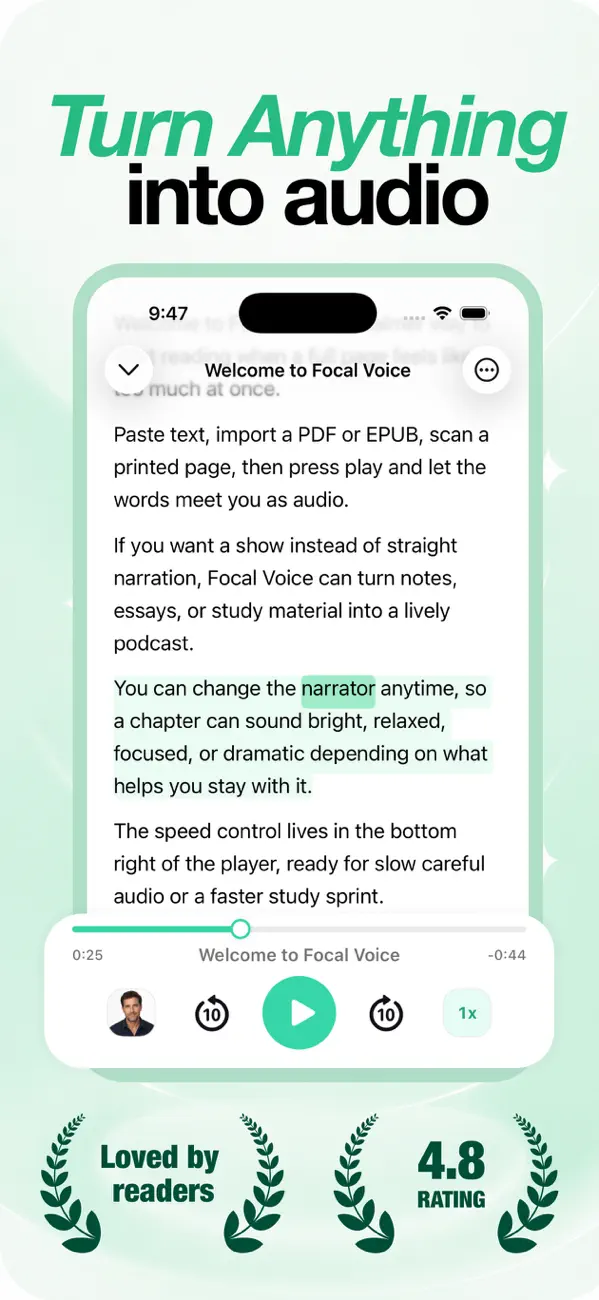
The built-in tools are accessibility features — great in a pinch, but not built for getting through a book, a stack of PDFs, or a week of saved articles. That's where Focal Voice comes in:
- Import anything: PDF, EPUB, MOBI, DOCX, pasted text, web links, or a photo of a printed page.
- Natural voices in 8 languages — pick a narrator like Aura or Michael and switch anytime.
- A real player: 1×–3× speed, ±10s skip, chapters, synced highlighting, saved progress per item.
- Offline: download hours of audio before a flight.
- AI podcast mode: have two hosts discuss your document instead of reading it verbatim.
Quick comparison
- A text message or paragraph: Speak Selection.
- One web page, hands-free: Speak Screen or Siri.
- Books, PDFs, article backlogs, studying: Focal Voice.
Frequently asked
How do I change the built-in voice?
Settings → Accessibility → Spoken Content → Voices. Downloading an "Enhanced" or "Premium" variant improves quality noticeably — though dedicated apps still sound more natural for long listening.
Can my iPhone read a whole book aloud?
With Speak Screen it's possible but clunky (it won't track your place). For DRM-free books, importing the EPUB into Focal Voice gives you a proper audiobook experience.