The fastest way to listen to a PDF on your iPhone is to import it into a text to speech app like Focal Voice, which extracts the text and reads it aloud with a natural voice. iOS also has two built-in options — Speak Selection and Speak Screen — that work for quick, one-off listening. Here are all three, from quickest to most capable.
Option 1: Speak Selection (built into iOS)
Good for hearing a paragraph or two without installing anything:
- Go to Settings → Accessibility → Spoken Content and turn on Speak Selection.
- Open your PDF in Files, Safari, or Mail and select some text.
- Tap Speak in the pop-up menu.
The catch: you have to select text page by page, playback stops when you leave the app, and there's no resume, library, or progress tracking.
Option 2: Speak Screen (built into iOS)
In the same Spoken Content menu, enable Speak Screen, then swipe down from the top of the screen with two fingers (or ask Siri to "speak screen") while the PDF is open. iOS reads everything visible and can auto-scroll. It's handy, but the voice controls are basic, long documents drift, and your place isn't saved between sessions.
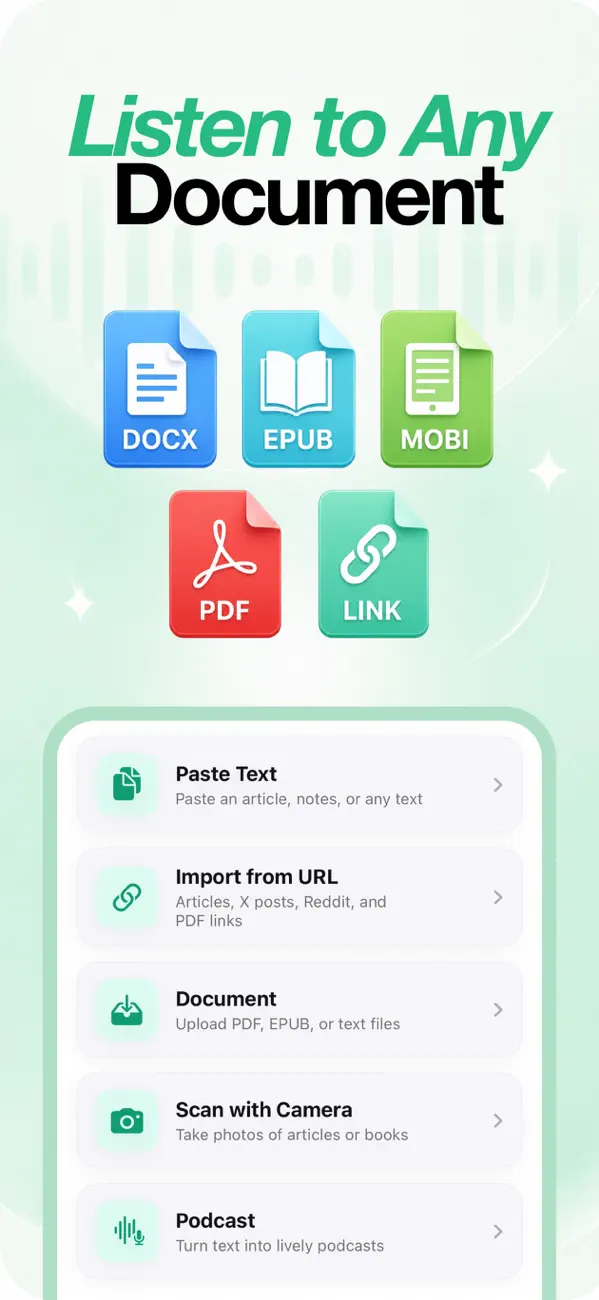
Option 3: Focal Voice — a real player for your PDFs
If you listen to PDFs regularly — reports, research papers, contracts, class readings — a dedicated PDF to audio app keeps everything in one library with a proper audio player:
- Download Focal Voice (free) on your iPhone or iPad.
- Tap Document and choose your PDF from Files, iCloud Drive, or share it into the app from Mail or Safari.
- Pick a natural voice — like Aura, Michael, or Bella — and press play.
You get synced text highlighting so you can follow along, playback from 1× to 3×, ±10-second skips, and chapter navigation for long documents. Your position is saved, so a 200-page PDF becomes something you finish over a week of commutes.
Tip: Going offline? Subscribers can download the audio for a whole document — or just the next few hours — before a flight, with a time estimate up front.
Which one should you use?
- One paragraph, right now: Speak Selection.
- A page or two, hands-free: Speak Screen.
- Whole documents, regularly: Focal Voice — natural voices, a saved library, speed control, and offline listening.
Frequently asked
Can Siri read a PDF out loud?
Siri can trigger Speak Screen ("Hey Siri, speak screen") while a PDF is open, but it can't manage long documents or save your place. For anything longer than a few pages, an app built for listening works better.
What about scanned PDFs with no selectable text?
If your PDF is just photographed pages, text extraction can fail in most readers. In Focal Voice you can use Scan with Camera on the original pages instead — it auto-detects and extracts printed text, then reads it aloud.